

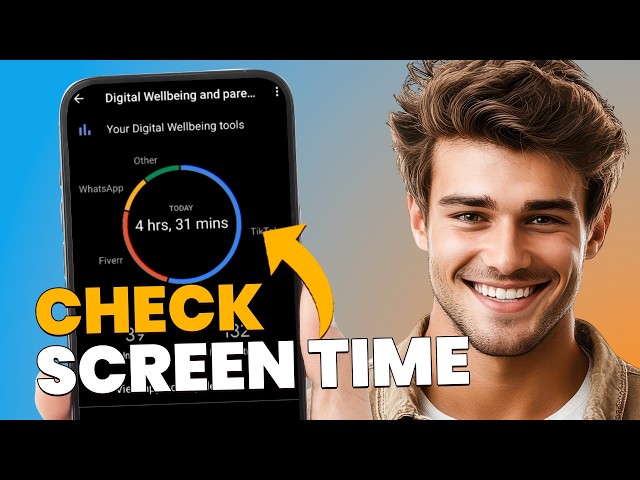
Seven hours and forty minutes. That was one ordinary Tuesday on a fifteen-year-old’s phone, and the number sat there by itself, explaining nothing. Figuring out how to check screen time on Android is the quick part. The slower question is which of those hours you’d actually want back.
That’s usually where a parent starts with Findmykids. You open the app on your own phone and see Ethan’s week broken down app by app — what he opened, how long he stayed in it, which days ran long. The evening column is often the one that changes the conversation: an hour before dinner reads differently than an hour after eleven.
The total is the least useful number
A daily total tells you the phone was on. It doesn’t tell you whether your teen was on a group call with the cross-country team, editing a video for a class project, or scrolling a feed he can’t remember opening.
The breakdown fills that in. On Android you see time by specific apps, day by day, plus the weekly picture and where that time was spent — how much of it happened at school, how much at home, how much in the car on the way back from practice. These usage statistics are free once your teen’s phone is connected.
That’s also what makes the first conversation easier. You’re not opening with “you’re on your phone too much.” You’re opening with a Wednesday that ran three hours longer than the rest of the week, and asking what happened on Wednesday.
Turning the numbers into something you both agree on
Teenagers negotiate, and a report gives you both something concrete to negotiate about. Once you’ve looked at a full week, the settings in Findmykids cover most of what parents actually end up asking for:
- daily limits for specific apps, with the app closing when the limit runs out;
- extra time added for the current day, when there’s a reason for it;
- schedules for school hours, homework and sleep, set per day of the week;
- a block you can turn on right now, for dinner or for a Saturday morning;
- apps that stay open no matter what — messages, maps — and apps that stay closed;
- new installs and settings changes that don’t happen without you.
Most of it lands better when your teen sees the same screen you do. Show him the week, let him argue for the app you got wrong, and set the limit together. The rule he helped write is the one that survives Friday night.
What Android gives you on its own
Android has a dashboard built in. On your teen’s phone, Settings → Digital Wellbeing & parental controls shows the day’s total and the time per app, and Google’s Family Link sends reports to your phone and sets app limits from there. Both are worth knowing about, especially if the raw numbers are all you need.
A few questions that come up
Do I need his phone every time? No. The setup happens once on his phone; after that you check the week from yours.
Will he know? He should. The app sits on his phone in plain sight, and limits work better as an agreement than as a surprise.
What if he uninstalls it? On Android the app can be protected from deletion, so it doesn’t quietly disappear on a Thursday afternoon.
Findmykids works with an Android phone in your teen’s pocket and either kind of phone in yours. Location on the map and the usage statistics are part of the free version; limits, schedules and blocking come with the paid plan and need a few permissions granted once on his phone. You’ll find it in Google Play and the App Store.
If you’re not sure what to change yet, don’t change anything for a week. Look at seven full days first, then pick the one hour you’d want back — that’s a much shorter conversation than the whole number.
One thought on “How to check screen time on Android”